
Google Drive can be used to collect wedding photographs, particularly if the couple and their guests already use Google accounts. You create a folder, share access and ask guests to add their files.
That sounds simple, but a shared cloud folder and a wedding guest uploader are designed for different jobs. Google Drive is a flexible file-management tool. A wedding upload gallery is designed to help a large and mixed group of guests contribute photographs with as few decisions as possible.
This guide explains where Google Drive works well, where guests may struggle and what you should check before turning a shared folder link into a wedding QR code.
Can you use Google Drive for wedding photos?
Yes. A couple can create a Google Drive folder, share it with their guests and allow people with the correct permissions to add photographs and videos.
Google Drive lets the folder owner assign roles such as Viewer, Commenter and Editor. For a guest to add files to a normal shared folder, they need suitable editing access and must be signed into a Google Account.
This is an important distinction. A link may be easy to open, but opening a folder and being able to upload into it are not necessarily the same thing.
How a Google Drive wedding photo folder works
The basic setup normally looks like this:
- Create a new folder in Google Drive.
- Give the folder a clear wedding name.
- Choose the sharing and access permissions.
- Copy the folder link.
- Send the link to guests or turn it into a QR code.
- Ask guests to open the folder and add their photographs.
The couple then manages the uploaded files inside their own Google Drive account.
Google explains that folder permissions are inherited by the files and subfolders inside. Files added later also inherit the folder’s permissions. That can be convenient, but it means the access decision applies to the whole shared collection rather than acting as a simple upload-only doorway.
Do wedding guests need a Google account?
Guests can sometimes open link-shared Google content without signing in, depending on the sharing setting. However, Google’s folder guidance states that adding, organising and editing files requires the person to be signed into a Google Account.
For many guests this will not be a problem. They may already use Gmail, Google Photos or Drive every day.
Others may encounter friction:
- they are signed into the wrong Google account;
- they do not remember their Google password;
- they use an iPhone but rarely use Google services;
- their work or school account restricts external sharing;
- they can open the folder but cannot immediately see how to upload;
- they are unsure whether everybody else can see their photographs.
Every extra login, permission screen or unfamiliar button gives a guest another opportunity to decide they will upload the photographs later. Later often becomes never.
What does Editor access allow?
A guest normally needs Editor-style access to add files to a shared Google Drive folder.
According to Google’s current folder-sharing guidance, an Editor can open, edit, delete or move files within the folder and can also add files.
That is broader than a dedicated guest uploader, where the guest may only be allowed to contribute new photographs and videos.
This does not mean your guests will deliberately alter anything. It does mean you should understand the permissions you are granting before sharing the same editable folder with a large wedding guest list.
Can you make a QR code for a Google Drive wedding folder?
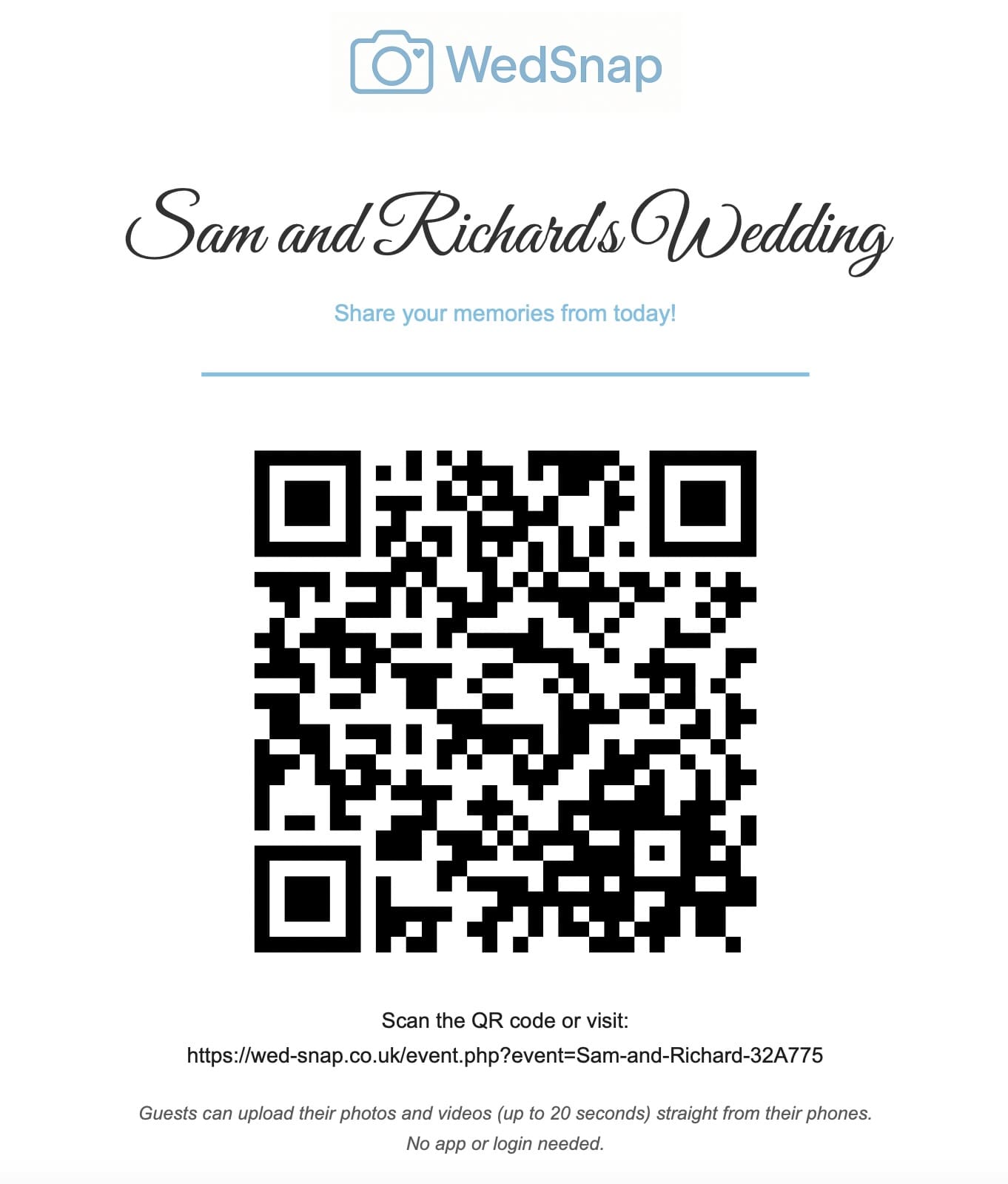
Yes. You can copy the shared folder link and use a QR-code generator to turn that address into a printable code.
The QR code only solves the typing problem. It does not change the Google Drive permissions or remove the need for guests to understand the folder interface.
A guest may still need to:
- choose or sign into a Google account;
- confirm that they have the correct access;
- find the upload or add-files control;
- understand where their files have gone;
- avoid moving or changing other files in the folder.
Always test the finished QR code using a phone and Google account that did not create the folder. Testing only from the owner’s device can hide permission problems.
For more practical QR advice, read how wedding photo QR codes work and how to test a wedding QR code before printing.
Advantages of using Google Drive for wedding photos
Google Drive can be a sensible choice in the right circumstances.
- You may already use it for your wedding planning files.
- The uploaded files remain within your existing cloud-storage account.
- Guests who regularly use Drive will understand the interface.
- You can organise files into folders and subfolders.
- You control the sharing settings.
- You may not need another service if the guest group is small and confident.
For a small wedding where everybody already collaborates through Google, a shared folder may be perfectly adequate.
Where Google Drive can become awkward for wedding guests
It is a shared folder, not an upload form
Guests enter a file-management interface. They are not necessarily presented with one clear button saying “Add your wedding photos”.
Upload access comes with wider permissions
The role that permits guests to add files can also permit other actions inside the shared folder.
Google accounts can create friction
A mixed guest list may include people who use Apple services, work accounts or no Google services at all.
Guests may see the whole collection
A shared folder is naturally designed for collaboration and browsing. Some couples enjoy that. Others prefer guests to contribute without giving them access to every photograph uploaded by somebody else.
Names and messages are not part of the wedding workflow
Files may show account ownership or filenames, but a normal Drive folder is not specifically designed to ask “Who are these photographs from?” or collect a personal message for the couple.
The couple must build the instructions
You need to create the QR code, write the signage, explain the upload process and test the folder permissions yourself.
Google Drive versus a wedding guest upload gallery
| Google Drive folder | Wedding guest upload gallery |
|---|---|
| General-purpose cloud folder | Designed around one wedding |
| Guests generally need suitable Google access to add files | Can accept uploads without guest accounts |
| Editing access may include moving or deleting files | Guest access can be limited to uploading |
| Guests may browse the shared folder | Guest uploader can remain separate from the private couple gallery |
| Couple creates the QR code and instructions | Wedding QR poster and uploader are provided together |
| Uses the general Drive interface | Uses a wedding-specific upload page |
| No dedicated guest message workflow | Can collect uploader names and messages |
When Google Drive may be the right choice
Consider Google Drive when:
- your wedding is small;
- nearly every guest already uses Google Drive;
- you are comfortable managing folder permissions;
- you want guests to browse the shared collection;
- you are happy to create and test your own QR code and instructions;
- you have time to help guests who cannot upload.
When a dedicated wedding uploader may be easier
A wedding-specific service is likely to be easier when:
- you have a large or mixed guest list;
- you do not want guests creating accounts or signing in;
- you want one obvious upload journey;
- you want guest uploads kept separate from the private gallery;
- you want names and messages collected with each upload batch;
- you want the QR poster, gallery and download process managed together.
WedSnap gives every wedding a browser-based guest upload page. Guests scan the QR code, choose their photographs or short videos and upload without downloading an app or creating a guest account.
Explore the WedSnap QR code for wedding photos or see how to collect wedding photographs from guests.
Practical tips if you choose Google Drive
- Create a separate wedding folder. Do not share a folder containing unrelated personal files.
- Check the permissions carefully. Understand what the assigned role lets guests do.
- Test with an outside account. Use a friend’s phone or a different Google account.
- Write clear instructions. Tell guests that they may need to sign in before adding files.
- Keep a backup. Download the final collection and store it in more than one safe location.
- Review the folder regularly. Check for accidental moves, deletions or duplicate uploads.
- Remove broad access afterwards. Change the sharing permissions when collection has finished.
Once everything has been collected, follow our guide to back up wedding guest photographs safely.
Google Drive or WedSnap: which is easier?
Google Drive can work well for a small group of confident Google users. It is flexible, familiar to many people and keeps the files inside the couple’s existing Drive account.
For a full wedding guest list, the main challenge is participation. A dedicated wedding uploader for collecting guest photos removes the Google account decision, presents one clear upload process and can prevent guests from entering the couple’s complete private collection.
The best choice is not simply the service the couple already knows. It is the one the least technical guest can use successfully after scanning the sign at the reception.
Related wedding photo-sharing comparisons
- Wedding photo app versus a shared Google album
- Dropbox versus a wedding photo sharing gallery
- Best wedding photo sharing apps in the UK
- Wedding photo sharing app for guest uploads
- Wedding photo sharing without an app
Sources checked
This guide was checked against Google’s current official documentation on sharing folders in Google Drive and Google Drive sharing permissions.
Wed-Snap still gives guests a quick QR-code route for uploading wedding photographs and videos, but the current experience also includes a mobile Guest Hub, a private Couple Hub, a digital guestbook, guest welcome and scheduled notifications, wedding-day itinerary tools and controls for the shared gallery.
These features are included as part of one Wed-Snap wedding, rather than being sold as separate guestbook, messaging or planning subscriptions.
See the complete Wed-Snap feature list and how the experience works.